How to Set Up the ASUS ROG Rapture GT-AX11000 Pro
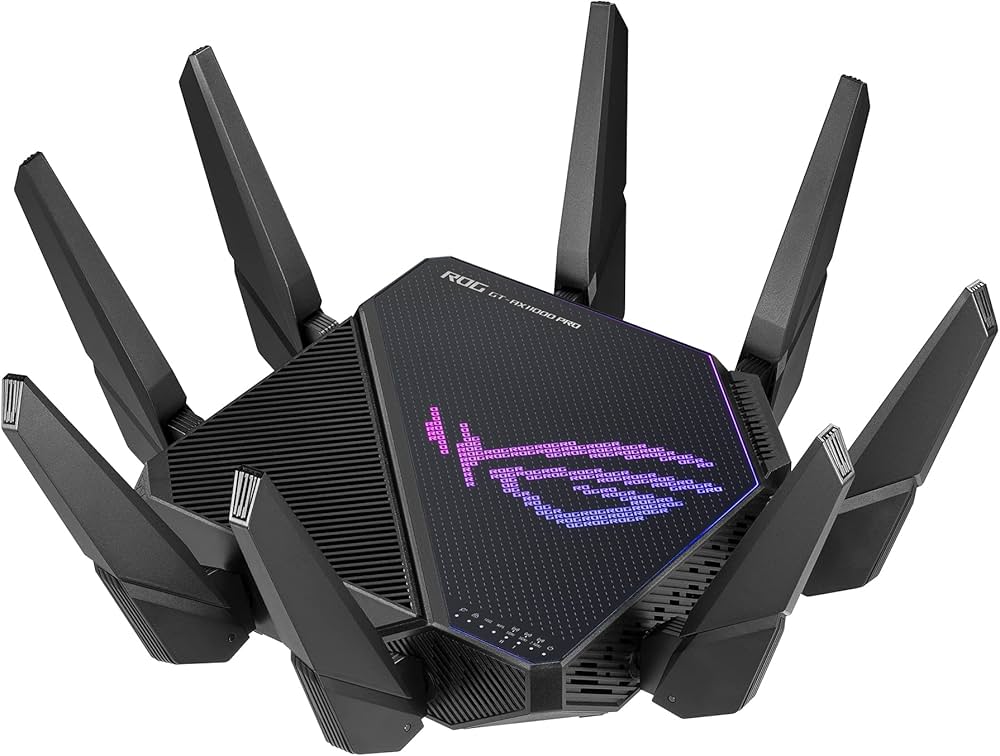
The ASUS ROG Rapture is a massive, complex piece of hardware designed for absolute maximum performance. While basic setup is similar to other routers, configuring its gaming features takes a little extra attention.
Step 1: Hardware and Antennas
This router has eight external antennas. Take your time to screw each one in securely. Point them straight up for optimal horizontal coverage across a single-story home.
- Power off your internet modem.
- Connect your modem to the router. Crucial Step: If your internet plan is 1 Gigabit or slower, use the standard 2.5G WAN port. If you have a multi-gigabit plan (faster than 2.5G), configure the 10G port as your WAN port in the settings later.
- Power on the modem, wait a minute, then power on the ROG Rapture.
Step 2: The Web Interface (Recommended)
While you can use the ASUS Router mobile app, we highly recommend setting this specific router up using a computer and a web browser so you can easily access the deep gaming menus.
- Connect your PC to the router via Wi-Fi (using the default credentials on the bottom sticker) or via an Ethernet cable into a LAN port.
- Open a web browser and navigate to router.asus.com.
- Follow the Quick Internet Setup (QIS) wizard to establish your admin password and create your new Wi-Fi network names.
Step 3: Configuring Triple-Level Game Acceleration
Once you are on the main dashboard, look at the left-hand sidebar menu.
- Click on Game Acceleration.
- Enable Gaming Port Prioritization: If you are using a wired PC or Console, plug it into the specific LAN port marked "Gaming Port" on the back of the router. This port automatically skips the network queue.
- Enable Game Boost (Adaptive QoS): This ensures gaming packets are prioritized over standard network traffic like Netflix streams or file downloads.
Using the Dedicated 5GHz-2 Band
Because this is a Tri-Band router, it broadcasts two separate 5GHz networks. We highly recommend dedicating the second 5GHz band strictly to your gaming devices. Do not give the password for this second band to anyone else in your house. This acts as your private, interference-free Wi-Fi highway.